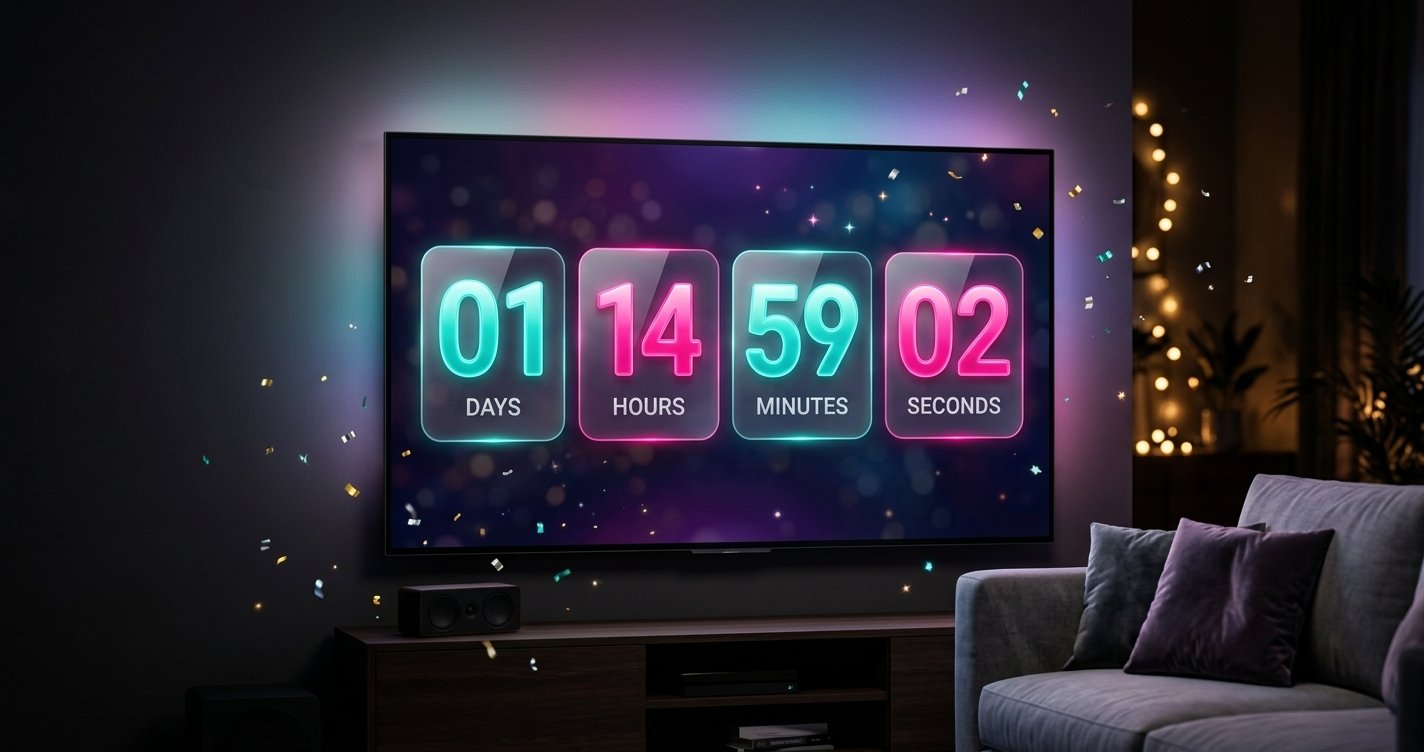
Waiting for a big moment is easier when everyone can see how close it is. A full screen countdown timer turns your laptop, TV, projector or phone into a giant clock that shows the days, hours, minutes and seconds left. Whether you are counting down to Christmas, timing a classroom quiz or building hype for a product launch, this simple tool keeps the whole room focused. In this guide you will learn what it is, seven smart ways to use it, and how to start a free online countdown in under a minute.
What Is a Full Screen Countdown Timer?
A full screen countdown timer is a browser-based countdown clock that hides everything except the numbers. Instead of a small widget tucked into a web page, the digits fill the entire display, so people can read them from across a room. You pick a target date or a duration, press start, and the clock counts down to zero in real time. Most tools also include a stopwatch mode, colour themes and an alert sound for when time runs out.
Why Use a Big Screen Timer?
A large, always-visible clock solves problems that a small phone timer cannot.
- Easy to read: Large digits stay visible from the back of a classroom, hall or living room.
- No distractions: Fullscreen mode removes menus, tabs and browser clutter.
- Builds excitement: A live countdown creates anticipation for events and festivals.
- Keeps time on track: Speakers, teachers and organisers always know how much time remains.
- Works on any device: Open it in a browser on a TV, projector, tablet or phone, with no app to install.
Because the clock is based on your device's own time, it stays accurate even if you leave it running for days.
7 Ways to Use a Full Screen Countdown Timer
1. Festivals and Holidays
Count down the days to Christmas, New Year, Halloween, Diwali or Eid al-Fitr and show it on the family TV or at a community gathering. Children love watching the numbers drop, and it turns waiting into part of the celebration. You can browse every festival countdown in one place.
2. Classrooms and Exams
Teachers can project a countdown timer for quizzes, group activities and class transitions. When students can see the time left, there are fewer questions and more focused work. A 10-minute preset is perfect for quick tasks, and the alert sound signals when it is time to stop.
3. Presentations and Meetings
Set a 10-minute talk or a 5-minute break and put the timer on the projector. A visible clock keeps every speaker honest and helps meetings finish on schedule, without anyone having to interrupt.
4. Parties, Weddings and Birthdays
Create a custom event countdown for a wedding, birthday or retirement party. Pick the date and time once and the page does the rest, so guests can share the excitement as the day gets closer.
5. Daily Time Milestones
Not every countdown needs a calendar date. Watch the clock run down to the weekend, to 5 PM, or to midnight for a party. These short, recurring countdowns are great for office motivation and live streams.
6. Study, Workouts and Cooking
Use the timer for study sessions, interval training or a pot that needs ten more minutes. When you want to measure how long something takes instead, switch to the stopwatch.
7. Launches and Live Streams
A "starting soon" countdown tells your audience exactly when a webinar, game stream or product launch begins. Display it full screen on the stream so viewers stay until the last second.
How to Start a Full Screen Countdown in 4 Steps
- Open Countdown Hub and choose a page: a festival, the timer, or a custom event.
- Set your time. Pick a preset (1, 5, 10, 25, 30 or 60 minutes), enter your own hours, minutes and seconds, or choose a date.
- Choose a theme. Eight colour themes, from Neon to Light, let you match the mood or the lighting in the room.
- Go full screen. Click the full screen button or press F. You can also use F11 on Windows or Control + Command + F on a Mac. Press Esc to exit.
Tips for a Better Big Screen Display
- Test the screen first. Smart TV browsers can be slow, so a laptop connected by HDMI is often more reliable.
- Pick high contrast. Bright digits on a dark theme read best in a dim room, while the Light theme suits a bright classroom.
- Decide on sound. Keep the alert beep for exams and games, and mute it for quiet meetings.
- Stop the screen from sleeping. Adjust your device's sleep settings before a long countdown.
- Keep the tab open. Closing the tab stops the display, so leave it running until the event starts.
Countdown Timer vs Stopwatch
A countdown timer starts at a set time and ends at zero, so use it when you have a deadline. A stopwatch starts at zero and counts up, so use it to measure how long something takes. Countdown Hub offers both, and you can switch between the timer and the stopwatch without leaving the site.
What to Look For in an Online Countdown Timer
Choose a tool with accurate timekeeping, a true fullscreen mode, large readable digits, sound or visual alerts, a mobile-friendly layout and no signup. Festival pages that automatically move to next year's date also save you from re-entering dates every year.
Frequently Asked Questions
How do I make a countdown timer full screen?
Click the full screen button on the page or press F. You can also use your browser shortcut: F11 on Windows or Control + Command + F on a Mac.
Is the full screen countdown timer free?
Yes. You can use every timer and festival countdown for free, with no signup.
Can I count down to a specific date?
Yes. Open a festival page for a ready-made date, or use the custom event countdown to set your own date and time.
Does it work on a phone or a TV?
Yes. It runs in any modern browser, so you can open it on a phone, tablet or laptop and connect that device to a TV or projector.
Are Eid and Diwali dates exact?
Lunar festival dates, such as Eid, Ramadan and Diwali, are approximate because they depend on moon sighting and regional calendars. Pages mark these dates as approximate.
Start Your Countdown Now
A full screen countdown timer makes every wait more fun and every deadline clearer. Open Countdown Hub, pick a festival or create your own event, and go full screen in one click.